
For over 50 years, we have dedicated ourselves to providing Industry with best in class wire management solutions and to helping solve mission critical issues.

The needs of today’s schools and universities are changing fast. When it comes to anticipating and meeting those needs, MonoSystems is in a class of its own.

For the past five decades, we’ve made it our business to offer more value to our partners, which in turn provides greater value to their customers.
How to Choose an HDMI Extender TX in 2026?
Choosing an Hdmi Extender Tx in 2026 requires more than checking distance and price. Video systems now carry demanding signals through walls, racks, classrooms, hotels, and control rooms. A small specification mistake can produce a black screen, unstable audio, or intermittent HDCP errors.
The HDMI Forum states that HDMI 2.1 can support bandwidth up to 48 Gbps, 8K at 60Hz, and 4K at 120Hz. Those figures matter when an extender must transport gaming, medical imaging, digital signage, or cinema content. Grand View Research also reports continued growth in the global HDMI cable market, driven by higher-resolution displays and expanding home entertainment installations. However, a growing market does not guarantee compatibility. That assumption is convenient, but often wrong.
Jeff Park, Technology Evangelist at HDMI Licensing Administrator, has emphasized, “Higher resolution requires higher bandwidth and stronger system compatibility.” His point deserves practical attention. A reliable Hdmi Extender Tx should match the source, display, cable category, refresh rate, HDCP version, and installation distance. Check EDID management before buying. Test the system with the actual source device, not only a laboratory signal. A transmitter that works perfectly at three meters may fail across fifty meters of uneven cable.
This guide examines those decisions through measurable criteria. It also questions several common purchasing habits. The cheapest unit may create the most expensive service call. And maximum resolution on a product box proves very little without stable real-world performance.
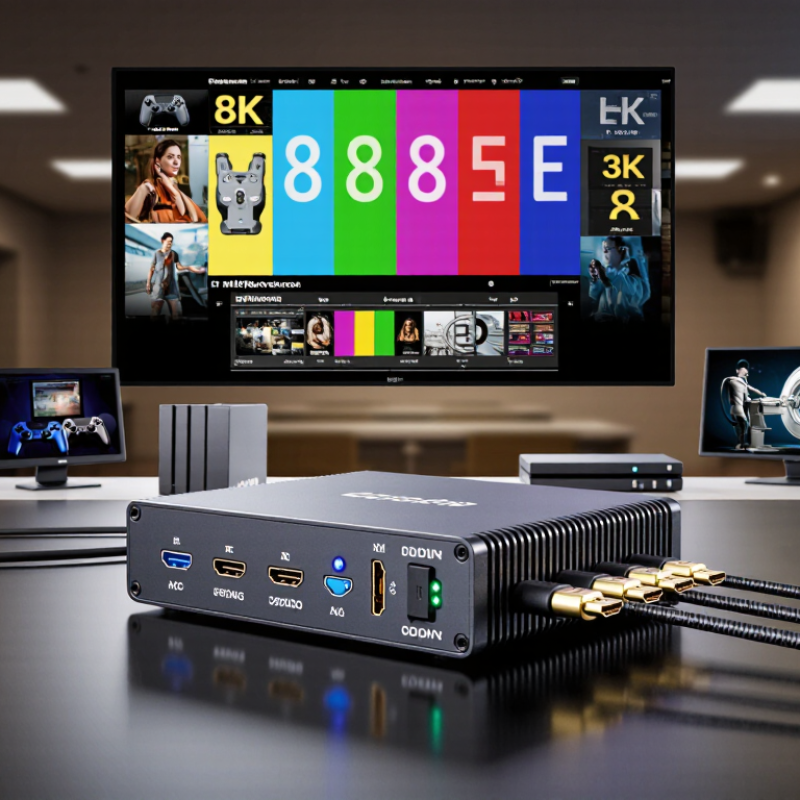
What Is an HDMI Extender TX and How Does It Work?
An HDMI Extender TX is the transmitting unit in an HDMI extension system. It receives video and audio from a source, such as a media player or computer. The TX then converts that signal for longer-distance transmission. Depending on the design, it uses Cat cable, fiber, or wireless communication.
At the far end, an RX unit converts the signal back into HDMI for a display. Some systems also return control signals, including remote commands and display information. This helps the source detect supported resolution, refresh rate, and audio formats. When choosing an HDMI Extender TX in 2026, check these details carefully. A device may advertise high resolution but perform poorly with long cables, narrow bandwidth, or weak power supplies. Real installations are less perfect than product diagrams suggest. A crowded equipment cabinet can also increase heat and cause intermittent faults.
Tips: Match the TX and RX as a complete system. Confirm the required resolution, refresh rate, cable category, distance, and copy-protection support. Test the actual cable route before final installation. Leave room for ventilation. I have found that simple testing prevents more problems than impressive specifications. Also check whether the extender supports EDID management, because incompatible display settings can produce a blank screen. Latency matters for gaming and live monitoring, while stable audio matters for conference rooms.
How to Choose an HDMI Extender TX in 2026? - What Is an HDMI Extender TX and How Does It Work?
| Selection Dimension | What the HDMI Extender TX Does | Common Technical Data | Recommended Choice | Why It Matters |
|---|---|---|---|---|
| Basic Function | The TX unit receives HDMI audio and video from a source, converts or prepares the signal for transmission, and sends it to a remote RX receiver. | A typical system consists of one transmitter, one receiver, and compatible cabling or network infrastructure. | Choose a complete TX/RX system rather than selecting a transmitter alone. | The TX and RX must support the same resolution, transmission method, and protection features. |
| Transmission Medium | It sends the HDMI signal through a longer-distance medium instead of relying only on a short HDMI cable. | Common options include Cat 5e/Cat 6 twisted-pair cable, fiber optic cable, coaxial cable, and dedicated network infrastructure. | Use Cat 6 for many building installations; use fiber where electromagnetic interference or very long distances are concerns. | Cable type affects distance, installation cost, interference resistance, and supported bandwidth. |
| Maximum Resolution | It transports the selected HDMI video format from the source to the display. | Typical product classes support 1080p, 4K at 30 Hz, or 4K at 60 Hz. Higher-end systems may support 8K or other advanced formats. | For current 4K displays, select a system explicitly rated for 4K at 60 Hz when smooth desktop, sports, or gaming content is required. | A resolution label alone is incomplete; refresh rate, color format, and bit depth also affect the required bandwidth. |
| Bandwidth | The TX processes and transmits the data rate required by the HDMI signal. | HDMI 2.0-class 4K/60 signals commonly require up to 18 Gbps of interface bandwidth; HDMI 2.1-class signals can require up to 48 Gbps. | Match the extender’s stated bandwidth to the source and display rather than relying only on a “4K” label. | Insufficient bandwidth can cause reduced refresh rate, color compression, flicker, or loss of signal. |
| Transmission Distance | It maintains the HDMI connection across a distance longer than a conventional direct HDMI connection. | Advertised distances vary widely by resolution, cable category, installation quality, and transmission method. Many copper-based systems are designed for tens of meters, while fiber systems can reach substantially farther. | Select a rated distance at least 20% longer than the actual cable route, including vertical and service loops. | Maximum distance is not universal; higher resolutions generally reduce the practical transmission range. |
| Latency | It transports the signal with little or no noticeable delay, depending on the design and processing method. | Many wired extenders specify near-zero or low latency, while systems using compression, scaling, or network processing may introduce additional delay. | For interactive gaming, live monitoring, and control systems, choose a product with a clearly stated low-latency specification. | Latency affects responsiveness and lip-sync performance, especially in interactive applications. |
| HDCP Compatibility | It passes the content-protection handshake between the HDMI source and display. | Common requirements include HDCP 1.4 for many HD and 4K sources, and HDCP 2.2 or later for protected 4K content, depending on the equipment. | Verify that the TX, RX, source, and display support the same HDCP version. | A mismatch may result in a black screen or an error message even when the video resolution is supported. |
| HDR and Color Support | It carries high-dynamic-range metadata and the selected color format when supported. | Check support for HDR10, other required HDR formats, 4:4:4 or 4:2:0 chroma, RGB, and 8-bit or 10-bit color. | For home theater and professional imaging, choose an extender whose HDR and color specifications match the complete signal chain. | Unsupported metadata or color formats can reduce image quality or disable HDR operation. |
| EDID Management | It helps the source identify the display’s supported video and audio capabilities. | Useful functions include EDID pass-through, fixed EDID profiles, display emulation, and automatic source selection. | Choose configurable EDID management for installations involving multiple displays, splitters, or AV receivers. | Correct EDID handling helps prevent incompatible resolutions, intermittent images, and audio failures. |
| Audio Pass-Through | It transports embedded HDMI audio to the remote display or connected audio device. | Support may include stereo PCM, multichannel compressed audio, or higher-bandwidth formats, depending on the TX/RX design. | Confirm the exact audio formats required by the display, sound system, or AV receiver. | Video may work correctly while audio remains muted if the supported audio formats do not match. |
| Network Architecture | It may use a direct point-to-point link or transmit AV data over a local network. | Point-to-point systems are generally simpler; network-based systems may support one-to-many distribution, switching, and centralized management. | Use point-to-point for a simple single-display link and managed network architecture for scalable distribution. | Network-based transmission requires careful planning for switch capacity, traffic isolation, and system configuration. |
| Power Delivery | It powers the TX and, in some designs, can deliver power to the RX through the transmission cable. | Some systems use separate DC adapters; others support power over the link or network, subject to the manufacturer’s limits. | Choose power-over-link operation when reducing power outlets is important, but verify the required power budget. | Insufficient or unstable power can cause random restarts, signal drops, or failure to establish a connection. |
| Installation Environment | It enables HDMI sources and displays to be placed in separate rooms, racks, offices, classrooms, or control areas. | Relevant factors include cable routing, temperature, humidity, electromagnetic interference, rack space, and access for maintenance. | Select shielded or fiber cabling for electrically noisy areas and use equipment rated for the actual installation conditions. | Environmental conditions can reduce signal stability and shorten equipment service life. |
| Control and Management | It may carry or support remote control signals between the source location and display location. | Possible features include IR extension, RS-232, Ethernet management, CEC support, status indicators, and firmware updates. | Choose only the control interfaces required by the installation to avoid unnecessary complexity. | Control compatibility is essential when the source is located in a locked rack or another room. |
| Reliability and Diagnostics | It maintains the link and provides information that helps identify connection problems. | Useful features include link-status LEDs, signal monitoring, cable diagnostics, automatic recovery, and accessible firmware updates. | For business-critical systems, prioritize documented diagnostics and stable recovery behavior. | Clear diagnostics reduce installation time and help distinguish cable, EDID, HDCP, and power problems. |
| Best-Fit Application | It extends HDMI signals for residential, commercial, educational, professional AV, and control-room applications. | Typical uses include remote displays, digital signage, conference rooms, classrooms, monitoring stations, and home theater systems. | Define the required resolution, distance, audio, control, latency, and scalability before choosing the TX. | The best extender is determined by the complete signal chain and installation requirements, not by a single headline specification. |
Note: Actual performance depends on the specific TX/RX pair, cable quality, connector termination, source, display, HDCP version, resolution, refresh rate, and installation environment.